


StandBy Mode: Clock & Widgets
4.3455.00 Reviews
App Specs
- Version
- 2.1.21.560
- Updated On
- License
- Free
- Downloads
- 1,000,000+
- Developer
- Zetabit Tecnologia
- Categories
- Personalization
- Platform
- Android
Screenshots
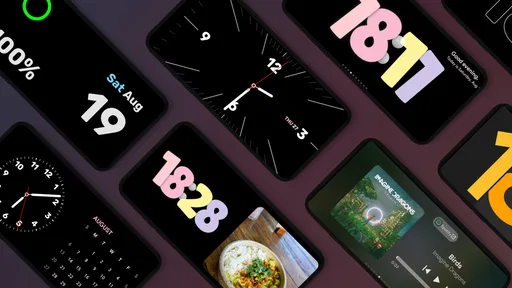
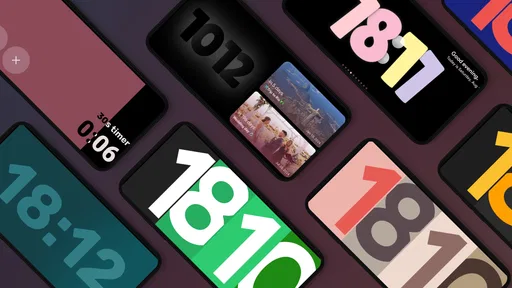
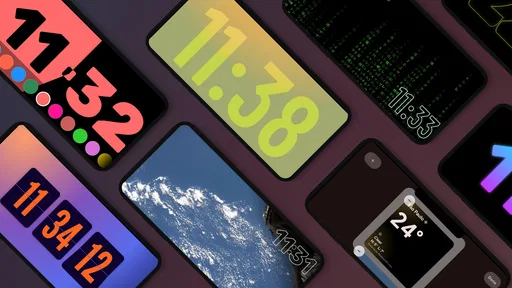
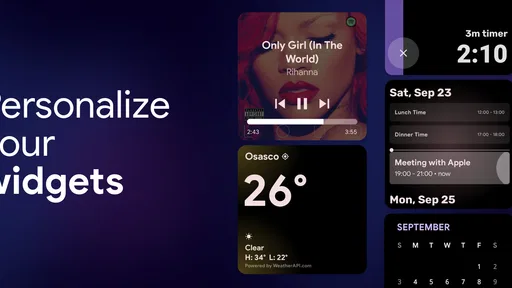
 Analysis by AppCompare
I like the idea behind StandBy Mode Pro Smart Display: rather than leaving a phone screen unused on a desk or bedside table, it gives that spare space a practical job. In my experience, the appeal is less about replacing a dedicated smart display and more about making a phone you already own useful at a glance. It works best when you choose a simple role for it—clock, photo frame, or quick information panel—and place it somewhere you naturally look during the day.
A phone display with a clear purpose
This is a free personalization app from Zetabit Tecnologia, and its central idea is easy to understand: set up an always-visible display for moments when your phone is resting nearby. It has a 4.5 average from around 28,000 ratings and over a million installs, which suggests that the concept has found an audience. The app is rated for Everyone, though whether it suits your household depends more on how you use a spare screen than on age.
The most useful way to think about it is as a small, glanceable surface, not a full assistant. A clock can make a phone on a nightstand easier to check, while a photo rotation can give a desk a more personal feel. Widgets may put information such as weather or headlines within view, but the value depends on which details you actually want to see. If you only need the time, a simpler clock app may be enough; if you enjoy turning a spare device into part of your room, this has more room to play.
Where it earns a place in a daily routine
A practical routine is to keep an older Android phone on a desk, choose a restrained clock design, and use the display as a quick reference while working. That can reduce the small interruptions of picking up your main phone just to check the time or glance at a headline. At bedtime, the same phone can serve as a bedside clock, although I would keep the screen’s brightness and placement comfortable rather than letting a bright display dominate a dark room.
The distinction between a desk setup and a bedside setup matters. At a desk, changing information and a photo slideshow can make the screen feel useful over longer stretches. Beside a bed, a clean clock may be more helpful than a busy panel that invites one more look. I would start with only the elements I know I will use, then add a widget or slideshow if the display feels too bare. That keeps the screen purposeful instead of turning it into another source of distraction.
What the customization is good for—and where it can snag
The range of display styles is a real part of the appeal. I can see this working for someone who wants a clock that fits a room, or who would rather see familiar photos than a blank screen. The slideshow is especially suited to a shared office or home workspace: it adds a personal touch without requiring the phone to be handled throughout the day. For a spare device, that can feel like a more worthwhile use than leaving it in a drawer.
There is a trade-off, though. The original setup can take some fiddling when a widget does not behave as expected, and the available control over layout and colors may not satisfy someone who wants exact visual placement. I would treat setup as a short experiment: begin with one display style, test it in the place where the phone will sit, and adjust only after seeing it in normal lighting. A layout that looks attractive while held in the hand may be too crowded or too bright from across a desk.
Worth Reading Before You Choose

Flipboard Shows What News Apps Must Do Beyond the Feed

Switching to Android Auto Means Rethinking Your Driving Routine

Google Calendar Makes a Crowded Week Easier to Manage

Ludo King Makes the Most of the Minutes Between Plans

Baby Panda World Brings Quick Play to Modern Phones, but Its Game Library Feels Busy

ESPN’s Live Game View Makes Following Close Games Easier
What Exactly Does StandBy Mode Pro Smart Display Do?
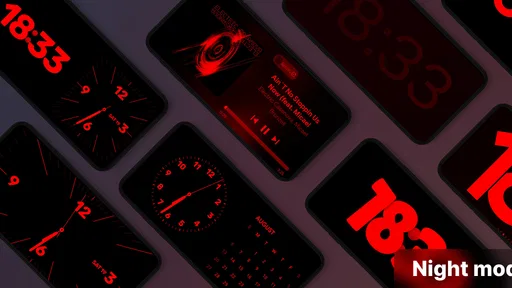
Let's dive right into what makes this app tick. Imagine turning your phone into a digital clock, photo frame, or even a news ticker while it's charging or just chilling on your desk. This is essentially what StandBy Mode Pro Smart Display delivers. It's like having your very own smart assistant that keeps you informed and entertained without lifting a finger.
Setting Up: A Walk in the Park
First things first, setting up the app is a breeze. Once installed, you can customize its features to suit your preferences. Whether you want to display your favorite photos, keep up with the latest news, or just enjoy a visually appealing clock face, the app offers a variety of options. It’s user-friendly and doesn’t require a degree in rocket science to get started. I was up and running in no time.
Features that Wow
Now, onto the fun part—features! The app includes a plethora of functionalities, each more intriguing than the last:
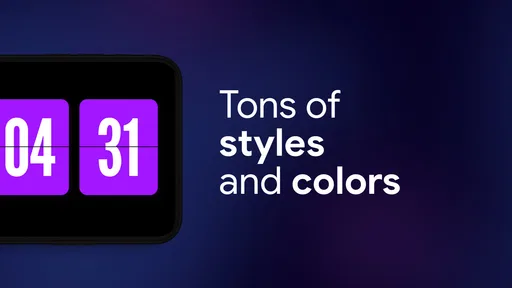
- Customizable Displays: Choose from different designs and themes to personalize your display.
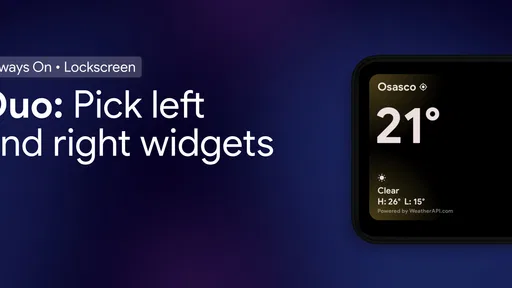
- Live Widgets: Whether you’re into weather updates, news headlines, or stock prices, the live widgets have you covered.
- Photo Slideshow: Turn your display into a personal gallery with a slideshow of your chosen photos.
- Minimal Battery Usage: Despite its capabilities, the app is designed to consume minimal battery, so you won’t find yourself constantly reaching for the charger.
Daily Use: A Game Changer
In my day-to-day use, having the app running felt like having a mini command center at my disposal. I loved having quick access to information like weather updates and news, especially during my morning routine. It was like having a personal digital assistant always ready to keep me informed.
Another aspect I appreciated was the photo slideshow. Seeing pictures of my loved ones flash across the screen during the day was a delightful touch that added a personal feel to my workspace.
Room for Improvement?
No app is perfect, and StandBy Mode Pro Smart Display is no exception. While it’s fantastic, there’s always some room for improvement. Some users, myself included, might find the initial setup of certain widgets a bit tricky. However, once I got the hang of it, it was smooth sailing.
Additionally, while the app excels in providing essential information, I found myself wishing for a few more customization options, particularly in terms of widget layout and color schemes.
Choosing it over built-in and dedicated options
Android already offers straightforward ways to check the time and see notifications, so I would not install this expecting it to replace every feature of the phone’s lock screen or notification shade. The point here is a more intentional display when the device is set aside. Compared with a basic clock app, this gives you more variety through themes, widgets, and photos; compared with a separate smart display, it makes use of hardware you may already have, but it is still a phone screen and needs to be positioned and powered like one.
That comparison helps clarify who should skip it. If you want a dedicated hands-free assistant, a screen that is always easy to see from across a large room, or a device built specifically for bedside use, buying a purpose-made product may be the better fit. If you need only a dim clock, your phone’s existing options may be simpler. I’d choose this app when the phone is already nearby and I want to make its idle moments more useful, not when I need a new centerpiece for the home.
Small choices that make the setup work better
One useful approach is to decide what you want the display to do before choosing its appearance. For a bedside setup, start with the clock and keep extra information to a minimum; for a work surface, try a photo slideshow or a small set of glanceable updates. This is a practical way to avoid a screen that looks impressive but competes with the task at hand. It also makes it easier to tell whether a widget is genuinely useful rather than simply attractive during setup.
Placement is another overlooked part of the experience. A phone angled toward you can be convenient on a desk, while a device lying flat may be harder to read without leaning over it. I would check the display from the position where I normally sit or lie down, then adjust the stand and content together. A simple face with clear time information can be more effective than a dense arrangement of widgets if the phone is several steps away.
It is also worth treating the slideshow as a deliberate choice rather than an automatic extra. Familiar pictures can make a shared space feel warmer, but a rotating gallery may be distracting during focused work or too personal in a public-facing area. I would use photos at home or in a private workspace, and choose a clock or information-focused view where other people regularly pass by. That small distinction makes the app feel tailored to the room instead of merely switched on.
Practical details before you commit
The app is free to install, with optional in-app purchases ranging from $0.99 to $54.99 per item. I would try the basic setup first and decide whether the display has become part of my routine before considering any purchase. The current version is 1.8.13.483, and it requires Android 7.0 or newer, so checking the phone’s Android version is a sensible first step if you plan to repurpose an older device.
One everyday question is whether it makes sense to leave a phone running as a display all day. I would use it where a charger is already convenient and where the screen has a clear job, rather than keeping a main phone lit simply because the option exists. The app’s minimal-battery-use claim is reassuring, but actual power use can still depend on the device, the screen, and how long it stays active. If battery life is your priority, test a short routine before making it a permanent bedside habit.
Another question is whether the widgets make it a substitute for checking a phone. I would not rely on a glanceable panel for anything that needs a detailed read or interaction. Its strength is quick awareness—seeing the time or catching a brief update—not handling a whole morning’s messages on a stand. Keeping that boundary in mind makes the app more useful and less likely to pull attention away from what you are doing.
For households, the Everyone age rating makes the app broadly suitable, but the display itself still deserves a little thought. A photo slideshow may reveal images to anyone passing the phone, and a visible screen can draw attention in a shared room. I would pick content that feels appropriate for the location, especially if the device sits in a common area. This is less a technical concern than a simple privacy and comfort choice when turning a personal phone into a public-facing display.
Final Thoughts
All in all, StandBy Mode Pro Smart Display is a gem for anyone looking to make the most out of their phone's idle time. It’s perfect for those of us who love being organized or just enjoy having a bit of extra functionality at our fingertips. Whether you’re a tech enthusiast or just someone who appreciates convenience, this app is worth checking out.
If you’re curious to experience this seamless blend of practicality and style, give it a go. You might just find it becomes an indispensable part of your daily routine, just like it has for me. Trust me, once you try it, you’ll wonder how you ever managed without it.
My recommendation is straightforward: try it if you already have an Android phone that can sit on a desk or bedside table, and you like the idea of a clock that can also show selected information or photos. The 4.5 average and roughly 397 written reviews point to a well-liked app, but what matters more is whether you will actually glance at the display. If you prefer a quiet, low-maintenance phone or already have a smart display that does the job, there is little reason to add another layer.
For me, the best version of this setup is modest: a readable clock, a useful update or two, and a location where the screen is easy to see without becoming the room’s main attraction. Zetabit Tecnologia’s app is a flexible way to create that arrangement, with enough personalization to make an idle phone feel intentional. I’d recommend giving it a try, while keeping expectations grounded: it is a handy screen makeover, not a replacement for a dedicated assistant or a reason to keep checking your phone.
Pros
- Customizable display themes.
- Energy-efficient standby mode.
- User-friendly interface design.
- Seamless app integration.
- Regular updates with new features.
Cons
- Limited widget options available.
- Occasional lag in update process.
- High battery consumption reported.
- Ads in free version can be intrusive.
- No offline mode for certain features.
FAQs for StandBy Mode: Clock & Widgets
What is StandBy Mode Pro Smart Display and how does it work?
StandBy Mode Pro Smart Display is an app designed to enhance your device's standby screen. It offers customizable widgets, real-time notifications, and essential information display. By integrating seamlessly with your device's settings, it allows you to personalize your display with various themes and widgets, ensuring you stay informed without unlocking your device.
Is StandBy Mode Pro Smart Display compatible with all Android and iOS devices?
The app is compatible with most modern Android and iOS devices. However, compatibility may vary based on the device's operating system version. It's essential to check the app's requirements on the download page to ensure your device is supported and to avoid any potential functionality issues.
What customization options does StandBy Mode Pro Smart Display offer?
StandBy Mode Pro provides a wide range of customization options, including different themes, widget arrangements, and color schemes. Users can select from a variety of clock styles, notification displays, and information widgets such as weather, calendar, and news, allowing for a personalized standby screen experience.
Does using StandBy Mode Pro Smart Display affect battery life?
While StandBy Mode Pro is designed to be energy efficient, any app that runs continuously can impact battery life. The app minimizes battery usage by optimizing widget updates and using dark mode themes. Users can further reduce battery consumption by limiting the number of active widgets and adjusting refresh intervals.
Is StandBy Mode Pro Smart Display secure and private?
Yes, StandBy Mode Pro prioritizes user security and privacy. The app does not collect personal data and only accesses necessary permissions to operate. It ensures that your information remains secure by adhering to strict privacy policies and using encryption where necessary to protect user data and settings.


